
Settings
Adjust how the Yedric chat looks and behaves on your storefront, the out-of-conversations message and your help page, with a live preview.
Settings controls how the chat looks and behaves on your storefront, the message shoppers see when your plan’s conversations run out, your help page, and more. A preview of the real chat widget docks open beside the form and follows your changes before you save. Close it to see the launcher button.
Changes bring up Shopify’s save bar at the top of the admin, with Save and Discard. Only the store owner or an admin can change settings.
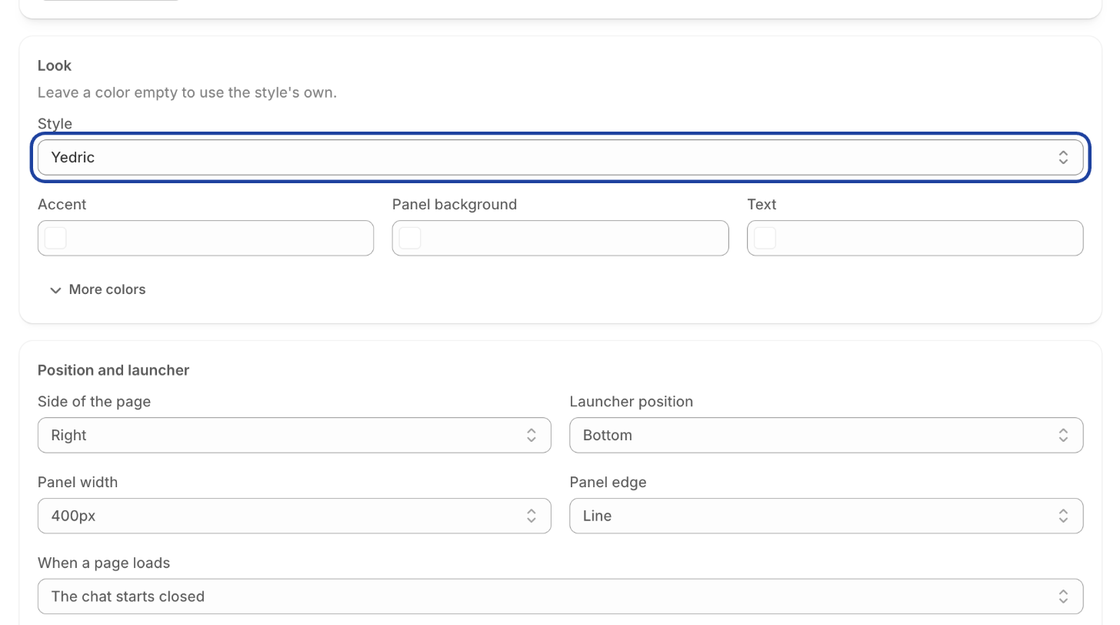
- Style: Yedric, Light, Dark or Inbox. Inbox is a compact 420px popout.
- Accent, Panel background and Text: Leave a color empty to use the style’s own.
- More colors: The title bar, its text, and the shopper’s and assistant’s message bubbles and text.
Position and launcher
Section titled “Position and launcher”- Side of the page: Right or Left.
- Launcher position: Bottom, Middle or Top.
- Panel width and Panel edge (Line, Shadow or Rounded).
- When a page loads: The chat starts closed, or starts open.
- Show the launcher button: Turn it off only if you open the chat some other way.
- Launcher tooltip: Text shown beside the launcher.
Set in your theme
Section titled “Set in your theme”The Yedric chat app embed in your theme editor has its own greeting, colors and button position (see Around your Shopify admin). When you set one there, shoppers see that one, and this page shows it with Set in your theme editor under the field instead of letting you change it here. A banner at the top, Some of these are set in your theme, says so and offers Open theme editor.
To edit one of those fields here again, set it back to Use Yedric setting (or empty, for the greeting and colors) in the theme editor.
[image:Screenshot of the Yedric Settings page (Apps > Yedric > Settings) on a store whose theme embed sets the chat button’s position, showing the info banner “Some of these are set in your theme” with an “Open theme editor” button, and the “Launcher position” dropdown disabled with “Set in your theme editor” under it. Spotlight the “Set in your theme editor” note.]
Messages
Section titled “Messages”- Greeting and Line under the greeting: What shoppers see when the chat opens.
- Message box placeholder: The hint in the empty message box.
- Suggested questions: How the starter questions are laid out, such as Stacked, Chips, List rows or Icon cards. The Inbox style always shows them as one row of chips. You choose which questions appear on the Custom replies page.
Behavior
Section titled “Behavior”- Let shoppers rate answers: A thumbs up or down on each answer. Ratings feed Satisfaction on Home.
- Let shoppers attach images: Shoppers can send a photo, such as a damaged item.
- Play a sound when your team replies: A chime when a teammate answers in live chat.
- Reopen the chat on the next page: When a shopper follows a link with the chat open, it stays open on the next page.
- Show tool activity: Lines like “Searching products…” while the assistant works. Most stores leave this off.
- Show suggestions beside the closed launcher: Shows starter questions next to the closed chat button, with an Opening line above them. Only when the chat starts closed.
- Hide the “Powered by Yedric.ai” link: Part of the Pro plan.
Character
Section titled “Character”Give the chat a character that waves hello, thinks while it looks things up, and gives a thumbs up. Pick one of the ready-made characters, or No character for just the chat with a simple icon. Your choice is saved the moment you click it.
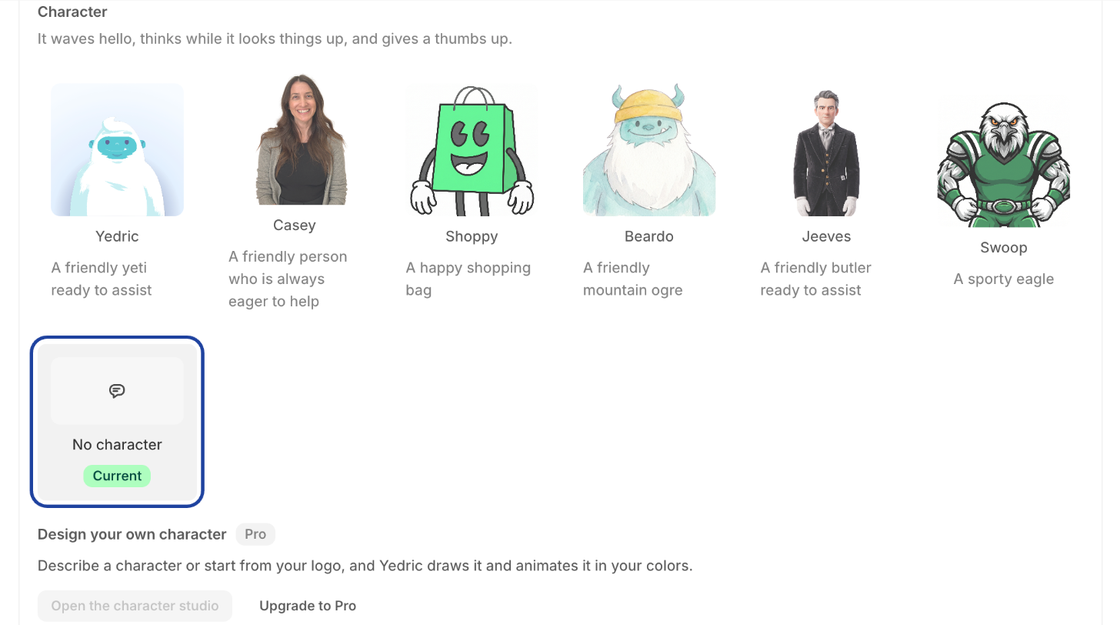
Design your own character (Pro): Describe a character or start from your logo, and Yedric draws and animates it in your colors. Open the character studio opens it in the Yedric dashboard. The card shows how many generations you have left this month. See Build a Character.
Launcher button image: Upload your own image for the chat button, and another for when a shopper points at it. PNG, JPEG, GIF, WebP or AVIF up to 1 MB. Square and at least 128 pixels looks best.
When your plan’s conversations run out
Section titled “When your plan’s conversations run out”On the Free plan, once your monthly conversations are used up, new shoppers see this Message to shoppers instead of an answer until the allowance renews. Conversations already under way carry on. Leave it empty for a standard message that points to your support email. See Plans and billing.
Help page
Section titled “Help page”Publish your Custom replies as a help and FAQ page on your store, with a button that opens your assistant. It uses your theme and lives on your own domain at /apps/yedric/help, and search engines can find it.
- Publish the help page: Off until you turn it on.
- Title: Defaults to “Help and FAQ”.
- Introduction: A line or two at the top of the page.
Once published, View the help page opens it. Shoppers can search the questions and expand each answer, and Ask our assistant opens the chat. To link to it, add the page to your store’s menu in Online Store > Navigation.
[image:Screenshot of a Shopify storefront’s help page at /apps/yedric/help, rendered in the store’s own theme, with the “Help and FAQ” title, the introduction, a “Search questions” box, a list of expandable questions with one expanded, and the “Still have a question?” area with the “Ask our assistant” button. Spotlight the “Ask our assistant” button.]
Email and WhatsApp
Section titled “Email and WhatsApp”The Email and WhatsApp sections set up the channels your team answers from the Yedric inbox. See Live chat and the inbox.
Languages
Section titled “Languages”Your assistant already replies in the shopper’s language. Click Read translations to also let it read your store’s product translations, so it finds products by their translated names and uses your wording. Shopify asks you to approve access to your languages and translations, and Yedric then reads your store again. Once it has, the section lists the languages it reads.