
Conversations
Search and read every chat, email and voice conversation your Yedric assistant has had in Shopify, then view summaries, add tags and team notes.
Conversations lists every chat, email and voice conversation your assistant has had with shoppers, newest activity first. It appears in the sidebar once your store has its first conversation. Open one to read the whole exchange, see Yedric’s summary, and tag it or leave a note for your team.
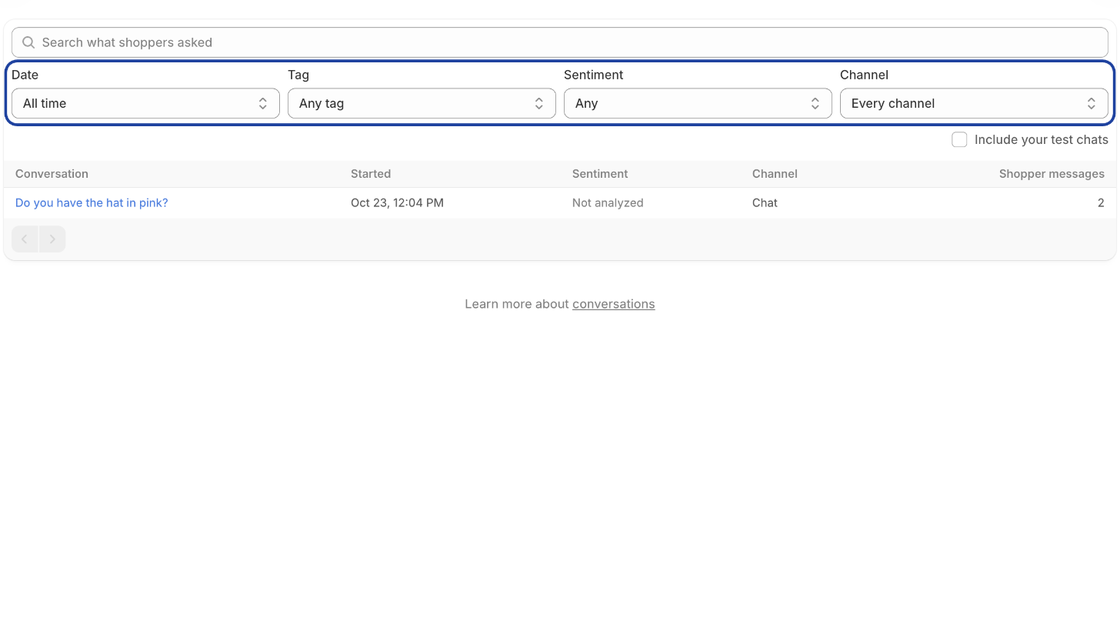
Finding a conversation
Section titled “Finding a conversation”Search what shoppers asked searches the full text of each conversation, as well as its summary, topics and tags.
Narrow the list with the filters:
- Date: All time, Today, Last 7 days, Last 30 days, Last 90 days, This month or Last month. Dates are when the conversation started.
- Tag: Any tag your conversations carry, including the topics Yedric adds.
- Sentiment: Positive, Neutral or Negative.
- Channel: Every channel, Chat, Email, or Voice.
Each filter you set shows as a chip above the list. Remove one with its x, or use Clear all. Filters stay in the page address, so going back from a conversation returns you to the same list.
Your own test chats from the Yedric app are hidden. Check Include your test chats to see them.
You can also get here from Analytics: clicking a day on the chart, a topic, or a feature request opens this list already filtered to it.
The list
Section titled “The list”Each row shows:
- Conversation: Yedric’s one-line summary, or the shopper’s first message until the summary is written. Below it, who the shopper is: their email, “Signed-in customer”, or “Your test chat”. A star marks conversations your team has starred, and the first few tags follow.
- Started: When the conversation began.
- Sentiment: Positive, Neutral or Negative, or “Not analyzed” while Yedric is still reading it.
- Channel: Chat, Email or Voice.
- Shopper messages: How many messages the shopper sent.
A conversation removed at a customer’s request still appears, so your counts stay accurate, but its text reads “Removed at the customer’s request”.
A conversation
Section titled “A conversation”Click a row to open it.
[image:Screenshot of a single conversation in the Yedric app (Apps > Yedric > Conversations, then click a row), showing the Transcript on the left with Shopper and Assistant messages and a “Searched your store content” badge, and the Summary, Tags, Notes and Details sections on the right. Spotlight the Summary section with its sentiment badge.]
Transcript
Section titled “Transcript”Every message, labelled Shopper, Assistant, Your team or Note, with the time and any rating the shopper gave. When the assistant used one of its tools, a badge says what it did, such as “Searched your store content”, “Lookup order”, “Opened a page for the shopper” or “Handed off to your team”.
Summary
Section titled “Summary”A sentiment badge and a short summary of the conversation, written a few minutes after it goes quiet. When the shopper asked for something you do not offer, or got frustrated, Yedric notes it here as Asked for or Frustration.
Yedric adds topic tags on its own. Add your own in Add a tag (up to 40 characters), or click a suggestion. Remove a tag by clicking its x. Star at the top of the page marks the conversation for follow-up; starred conversations carry the Starred tag, so you can filter for them.
Notes are for your team only; shoppers never see them. Type in Add a note for your team and click Add note.
Details
Section titled “Details”When the conversation started, its channel, and how many messages the shopper sent. When Yedric knows who the shopper is, Customer links to their customer page in Shopify. Started on links to the storefront page the chat began on.
Replying
Section titled “Replying”Email and WhatsApp conversations have a Reply button at the top, which opens that conversation in the Yedric inbox in a new tab. Chats are answered live, in Chats. See Live chat and the inbox.