
Changes
Browse the full history of changes to your Yedric assistant's configuration, see who changed what and when, and act on that history if needed.
Versions provides a complete history of all modifications made to your assistant’s configuration. This feature gives you full transparency into how your assistant has evolved over time, and the ability to act on that history when needed.
Reviewing Versions
Section titled “Reviewing Versions”All changes are displayed in a chronological history list. Each entry shows the timestamp, who made the change, and a summary of what was modified. To inspect a specific version in detail, click View to see the full configuration snapshot for that point in time.
Comparing Versions
Section titled “Comparing Versions”To see exactly what changed between two points in time, select any entry in the history and click Diff (short for “difference”). This opens a side-by-side comparison with lines added highlighted in green and lines removed highlighted in red. This is useful for understanding the precise impact of a change before deciding whether to keep or revert it.
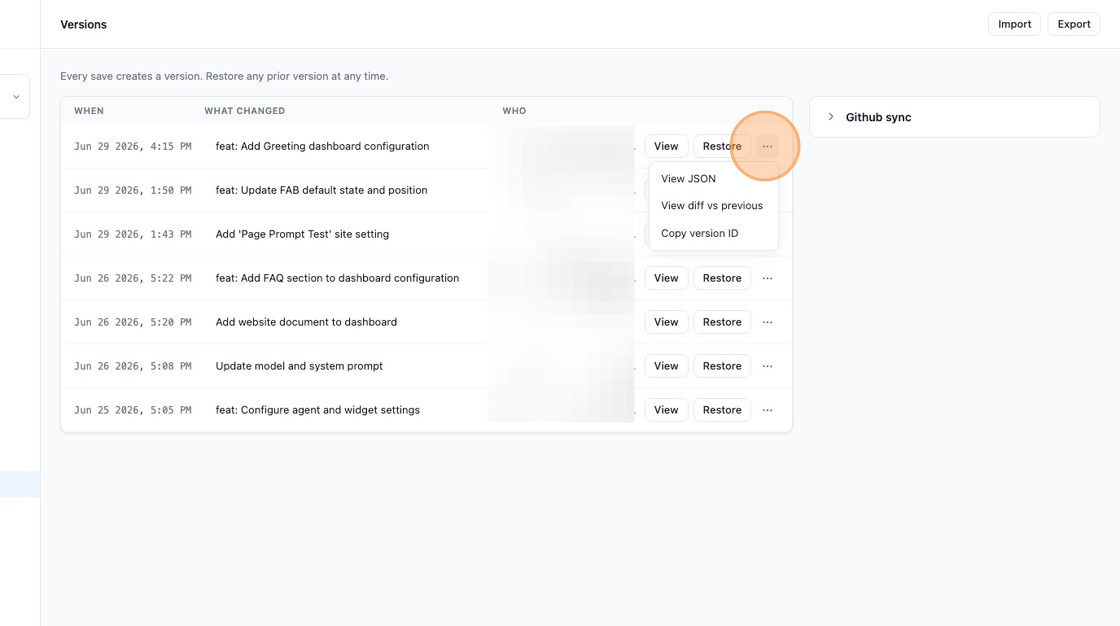
Select view diff vs pervious to see changes.
Restoring a Previous Version
Section titled “Restoring a Previous Version”If you need to revert to an earlier state, Versions makes it straightforward. Clicking Restore on any version will reapply that configuration to your assistant’s current settings, which is useful for quickly rolling back an unintended change or returning to a known working state.
Importing and Exporting
Section titled “Importing and Exporting”Versions supports importing and exporting JSON files (a standard, human-readable data format), giving you flexibility in how you manage and transfer configurations. This is particularly useful for:
- Exporting: Backing up a configuration or sharing it across environments.
- Importing: Applying a previously saved or externally prepared configuration to your assistant.
You can also export and import assistant configurations directly from the assistant list, without going through Versions.
Git Sync
Section titled “Git Sync”If your team uses GitHub, you can connect your assistant’s configuration to a repository and keep it in version control alongside your codebase. Changes can be pushed to GitHub manually or pulled in from a branch, and you can configure a webhook to apply changes automatically whenever a commit is pushed. Git Sync setup is covered in the Developers section.
The core configuration lives in agent.json, with the instructions in prompt.md beside it. The settings from the assistant’s Live chat & support card (see Live Chat) travel in a liveChat block of that file, so a new assistant can be set up from a file instead of by hand:
"liveChat": { "supportEmail": "support@example.com", "autoAssign": true, "maxChatsPerAgent": 2, "idleTimeoutMinutes": 15, "assignedUserIds": [], "schedule": { "timezone": "America/Los_Angeles", "week": [[], [{ "open": "09:00", "close": "17:00" }], [{ "open": "09:00", "close": "17:00" }], [{ "open": "09:00", "close": "17:00" }], [{ "open": "09:00", "close": "17:00" }], [{ "open": "09:00", "close": "17:00" }], []] }}supportEmail: The address that receives transcripts and offline-form messages.autoAssign: Whether incoming chats are handed to the least-loaded available agent automatically.maxChatsPerAgentandidleTimeoutMinutes: The per-agent chat cap and the idle timeout in minutes. Writenullto remove the cap or the timeout.assignedUserIds: The dashboard user ids allowed to staff this assistant. These ids only mean something inside the organization that issued them, so leave the key out of a bundle you intend to reuse in another organization.schedule: The business hours, ornullfor none.timezoneis an IANA zone name andweekis exactly seven entries, Sunday first, each a list ofopenandclosetimes inHH:MM. An empty list means closed that day.
A key that is absent leaves the current setting alone, so a pulled bundle only changes what it actually carries. A schedule is checked the same way the dashboard checks it, and an invalid value (such as an unknown timezone) is dropped and logged rather than failing the whole pull.
When to Use Versions
Section titled “When to Use Versions”Use Versions when you need to audit your assistant’s configuration history, recover from an unintended modification, or transfer configurations between environments. It serves as both a safety net and a practical tool for managing your assistant’s lifecycle.