
Around your Shopify admin
Find where Yedric appears beyond the Apps list: storefront and customer account blocks, an admin block on orders and customers, and Sidekick.
Yedric is not only a page in your Apps list. It adds a few things elsewhere in Shopify: blocks on your storefront and in customer accounts, a block on orders and customers in your admin, and answers in Shopify Sidekick. None of them are on until you add them, and none depend on your plan.
The chat on your storefront
Section titled “The chat on your storefront”The Yedric chat app embed puts the chat button on every page of your store. Turn it on with Turn on in theme on Home, or in Online Store > Themes > Customize > App embeds.
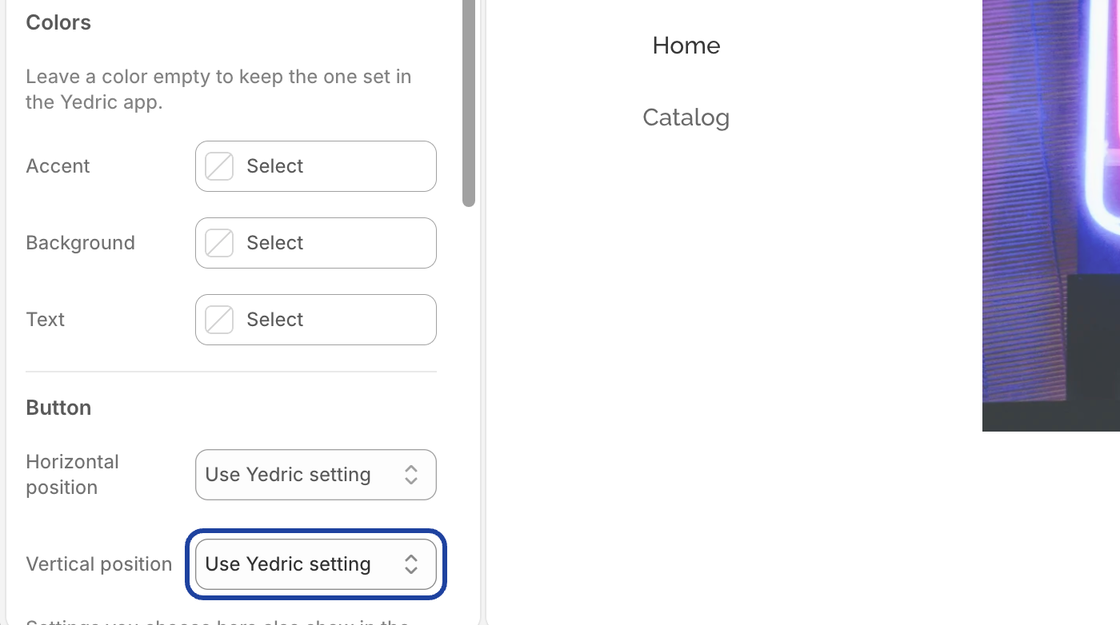
The embed has a few settings of its own in the theme editor, so you can adjust the chat while you design your theme:
- Greeting message: Leave it empty to use the greeting set in the Yedric app.
- Accent, Background and Text colors: Leave them empty to keep the colors set in the Yedric app.
- Horizontal position (Right or Left) and Vertical position (Lowest, Middle or Highest) of the chat button: Leave them on Use Yedric setting to follow the app.
Whatever you set here also shows in the Yedric app. On the app’s Settings page, those fields are marked Set in your theme editor, so the two never disagree.
When a shopper is logged in to your store, the chat greets them by first name and already knows who they are, so they can ask about their orders without proving it again.
Product questions
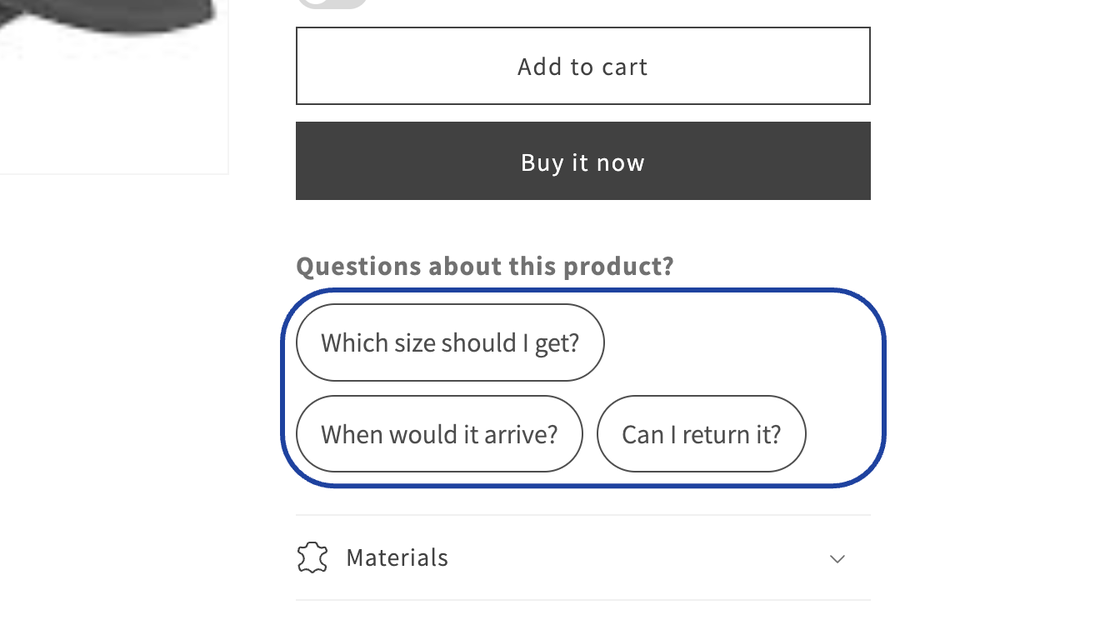
Section titled “Product questions”The Product questions app block adds up to three questions shoppers can tap on a product page, such as “Which size should I get?”, “When would it arrive?” or “Can I return it?”. Tapping one opens the chat and asks it about that product.
To add it:
- In Online Store > Themes, click Customize and open a product template.
- In the product information section, click Add block and choose Product questions under Apps.
- Edit the Heading and Question 1 to Question 3 if you like. Leave a question empty to hide it.
- Click Save.
The block opens the chat, so it needs the Yedric chat app embed on.
Order questions in customer accounts
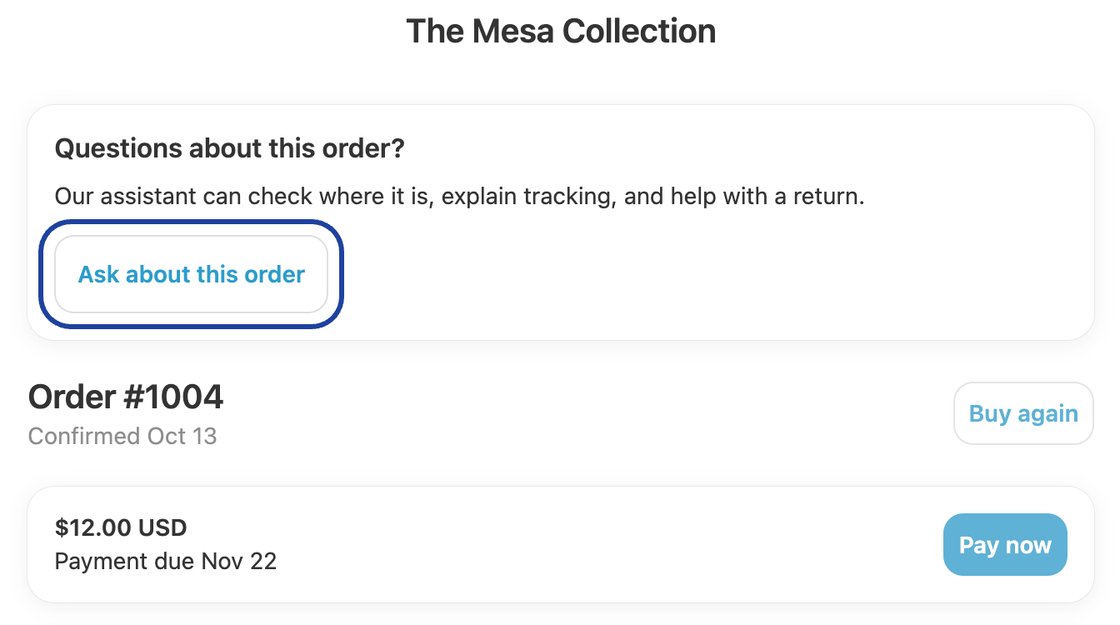
Section titled “Order questions in customer accounts”The Order questions block puts Ask about this order on the order status page of Shopify’s customer accounts, under the heading “Questions about this order?”. It opens the chat on your storefront, already asking about that order, so the assistant can check where it is, explain tracking, or help with a return.
Add it in Settings > Checkout > Customize (the checkout and accounts editor) on the Order status page. It works with new customer accounts, and needs the Yedric chat app embed on.
On orders, customers and abandoned checkouts
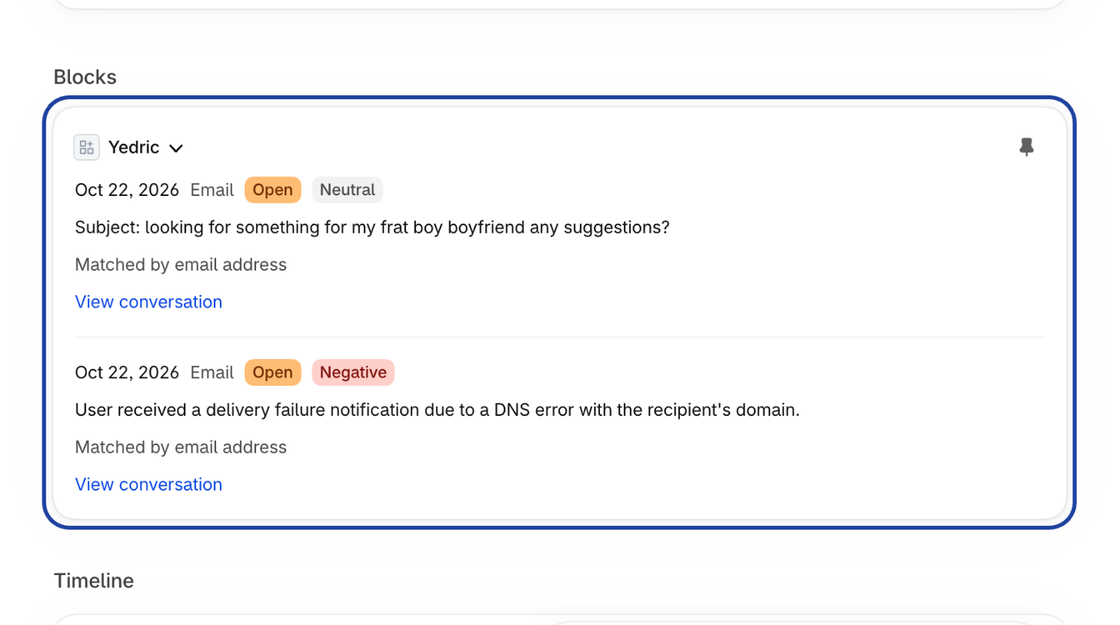
Section titled “On orders, customers and abandoned checkouts”The Yedric admin block shows a shopper’s recent conversations right on their order, customer or abandoned checkout page in your Shopify admin: the date, channel, a one-line summary, the sentiment, and whether your team stepped in (Answered, Handed off, Open or Closed). View conversation opens it in Yedric.
Shopify does not add app blocks for you. To add it:
- Open any order (or customer).
- Click the customize menu on the page, add the Yedric block, and pin it so it stays.
- Repeat on a customer page, and on an abandoned checkout if you want it there too.
On orders and customers, Open in Yedric under More actions shows the same list in a window.
Shopify Sidekick
Section titled “Shopify Sidekick”Ask Shopify Sidekick about your assistant in plain words. For example:
- “How is my Yedric assistant doing this month?”: Conversations, hand-offs, resolution rate and satisfaction.
- “What are shoppers asking Yedric about?”: Top topics, with example conversations.
- “What can’t Yedric answer?”: Knowledge gaps. Sidekick can turn one into a draft custom reply, which opens in the app for you to check and Save.
- “Is Yedric live on my store?”: Whether the chat is on, when your catalog was last read, and how many conversations you have used.
- “How many support emails are waiting?” or “Show my open tickets”: Your email inbox at a glance.
Sidekick can also open an email conversation in the app so you can Close it, Set pending, Reopen it, or Assign to me. Open in inbox to reply takes you to the inbox to answer it.
Sidekick never changes anything without your click, and it only sees summaries of conversations, never shoppers’ names or contact details.
Getting help
Section titled “Getting help”The Support button Shopify shows for the Yedric app opens the app’s Help page, with the ways to reach ShopPad, the team that builds Yedric, and a link back to the setup guide.