
Prompt
Write the core instructions your Yedric assistant reads before every chat, covering what your app does, how it should respond, and what to avoid.
The Prompt tab is where you give Yedric his core instructions. This is the first thing he reads before every conversation, so it shapes everything. The instructions guide him on how he responds, what he focuses on, and how he talks to your users.
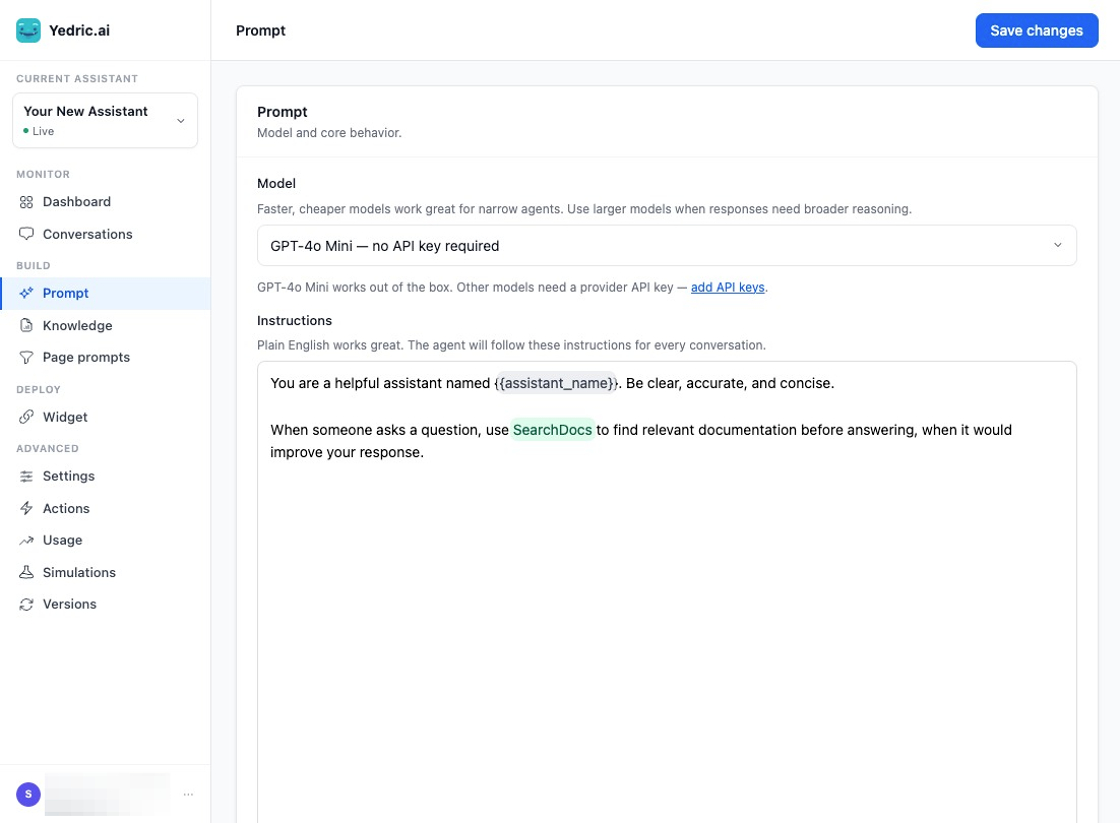
Select your model and manage your instructions in the Prompt tab.
What to Include
Section titled “What to Include”A good system prompt covers a few key things:
- What your app does and who your users are
- What Yedric can and cannot help with
- How you want him to communicate: tone, level of detail, any phrases to avoid
- Any context that helps him give accurate answers specific to your product
The more specific you are, the better Yedric performs. A prompt that says “you are a helpful assistant” will get generic results. A prompt that says “you are a support assistant for a Shopify app that helps customers add custom options to their products” gives Yedric real context to work with.
Autocomplete
Section titled “Autocomplete”While writing your instructions, type / to bring up a list of things you can reference directly in the prompt: available tools, skills from your MCP servers (custom integrations your developer may have set up), and any secrets you have stored for this assistant. Selecting one inserts a reference that Yedric can use at runtime.
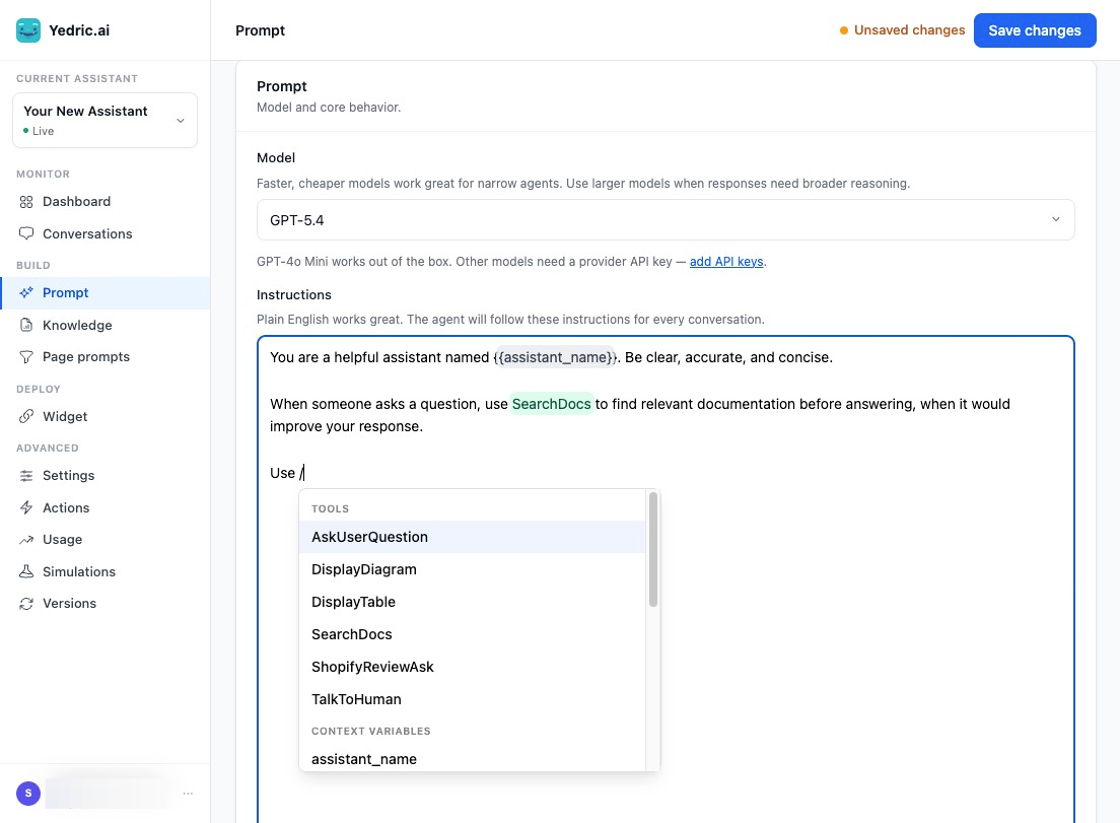
Using "/" will open a menu of options to add to your instructions.
Suggestions from the Dashboard
Section titled “Suggestions from the Dashboard”If you have conversations running, the Dashboard analyzes them and may generate a suggested revision to your instructions based on patterns it detects. When a suggestion is ready, recommendations appear in your dashboard. You can apply the suggestion directly to the instructions in your prompt tab or dismiss it if it is not relevant.
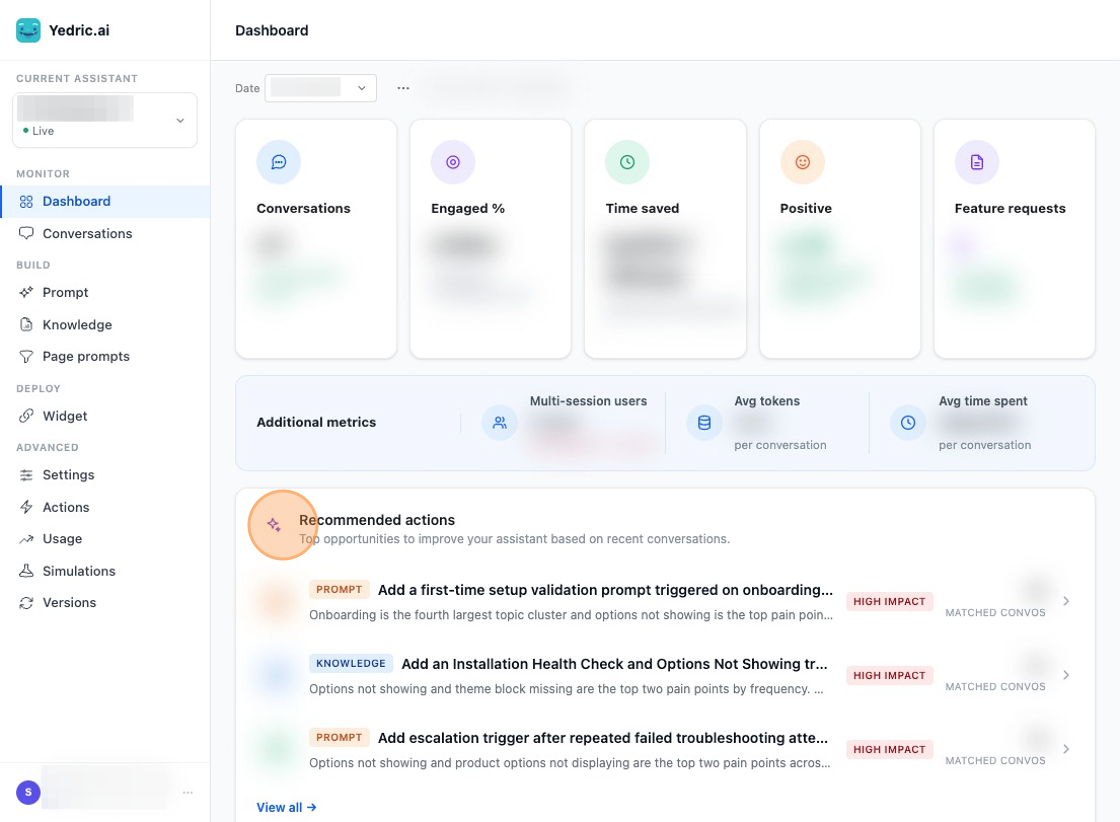
Recommended actions appear on your dashboard as conversations are up and running.
Updating Your Prompt
Section titled “Updating Your Prompt”You can edit the Name, Model, and System Prompt at any time from this tab. Click Save Changes when you are done.
If you want to try a different approach without losing your current setup, use Duplicate to create a copy of the assistant first.
Start with what your support team already knows. If your team answers the same questions every day, the answers to those questions should be in the prompt or the knowledge base.
Use the Conversations tab to see how users are interacting with Yedric. If you notice gaps or misunderstandings, come back here and refine the prompt.